Cafés and bakeries
A shop that just needs a few menu videos on the screen behind the counter
Put the videos on a USB drive and plug it in
Ads are on screen the same day — no account or server to set up
Store Screens
An ad player you run from a USB drive or your phone — no server
At a glance · LUMA PLAYER
LUMA PLAYER is a local ad player that plays ad and menu videos on a single LUMA box — no server, no cloud account. Plug in a USB drive or put files in the box's “luma” folder and they play by themselves; use the remote to change playlists, schedules and settings on the box screen. With the LUMA PLAYER app on a phone on the same Wi‑Fi, you can upload ads and handle split screens, tickers and schedules more easily. Everything works inside the store, even without internet.
Who it's for
Real product screens · sample content and demo data
If this sounds familiar
Key features
Plug in a USB drive and the box copies its videos and photos to the “luma” folder in internal storage and starts playing. Once copying is done, it keeps playing after you unplug the drive. If the drive has a “luma” folder, only that folder is copied.
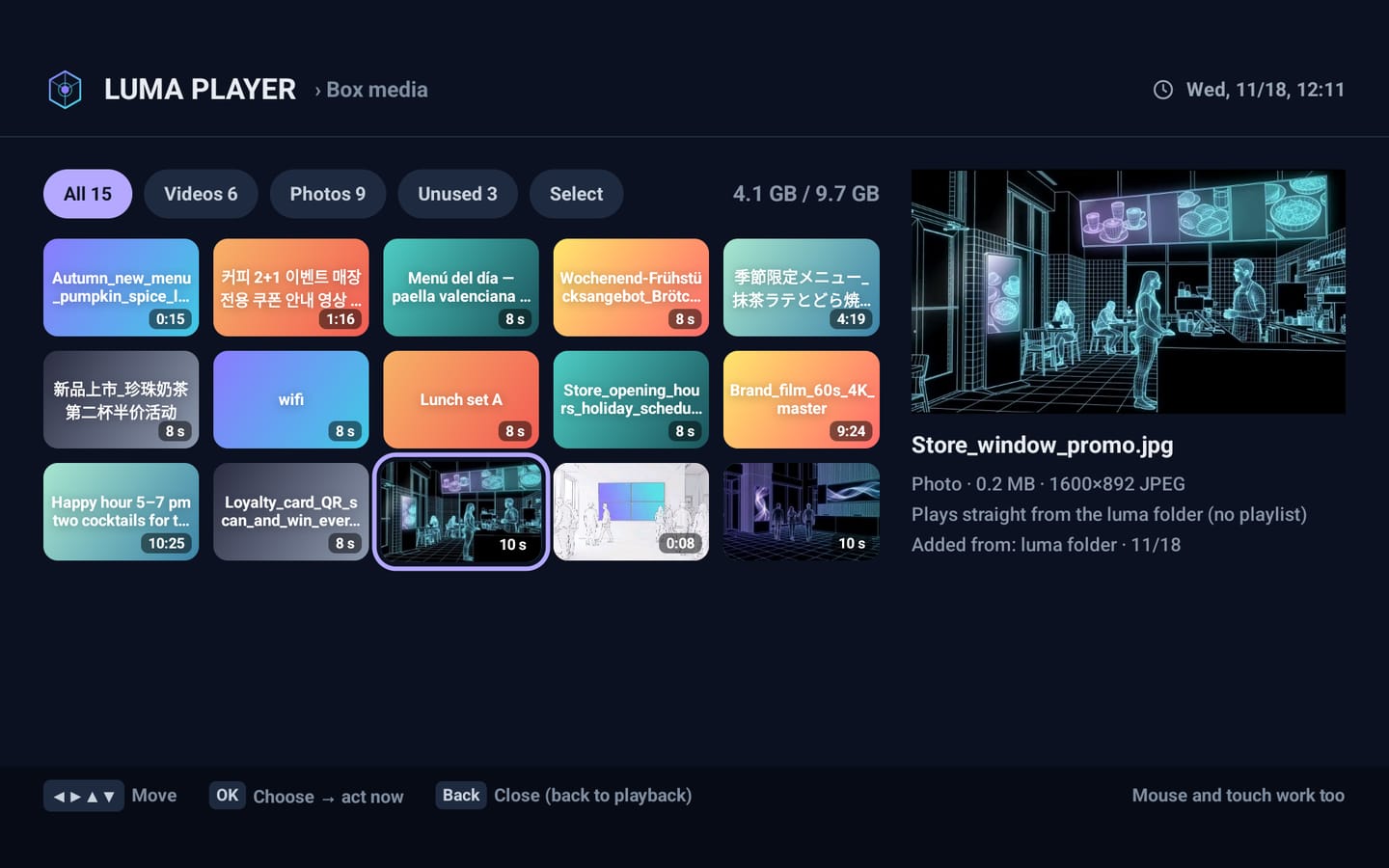
Files you put in the box's “luma” folder play in file-name order without making a playlist; photos show for 10 seconds each.
When a USB drive is plugged in: copy and play · play right away · ask · ignore. Set it to “ignore” so nobody can take over the screen with a USB drive.
When there is nothing to play, the box shows the standby screen and message you chose.
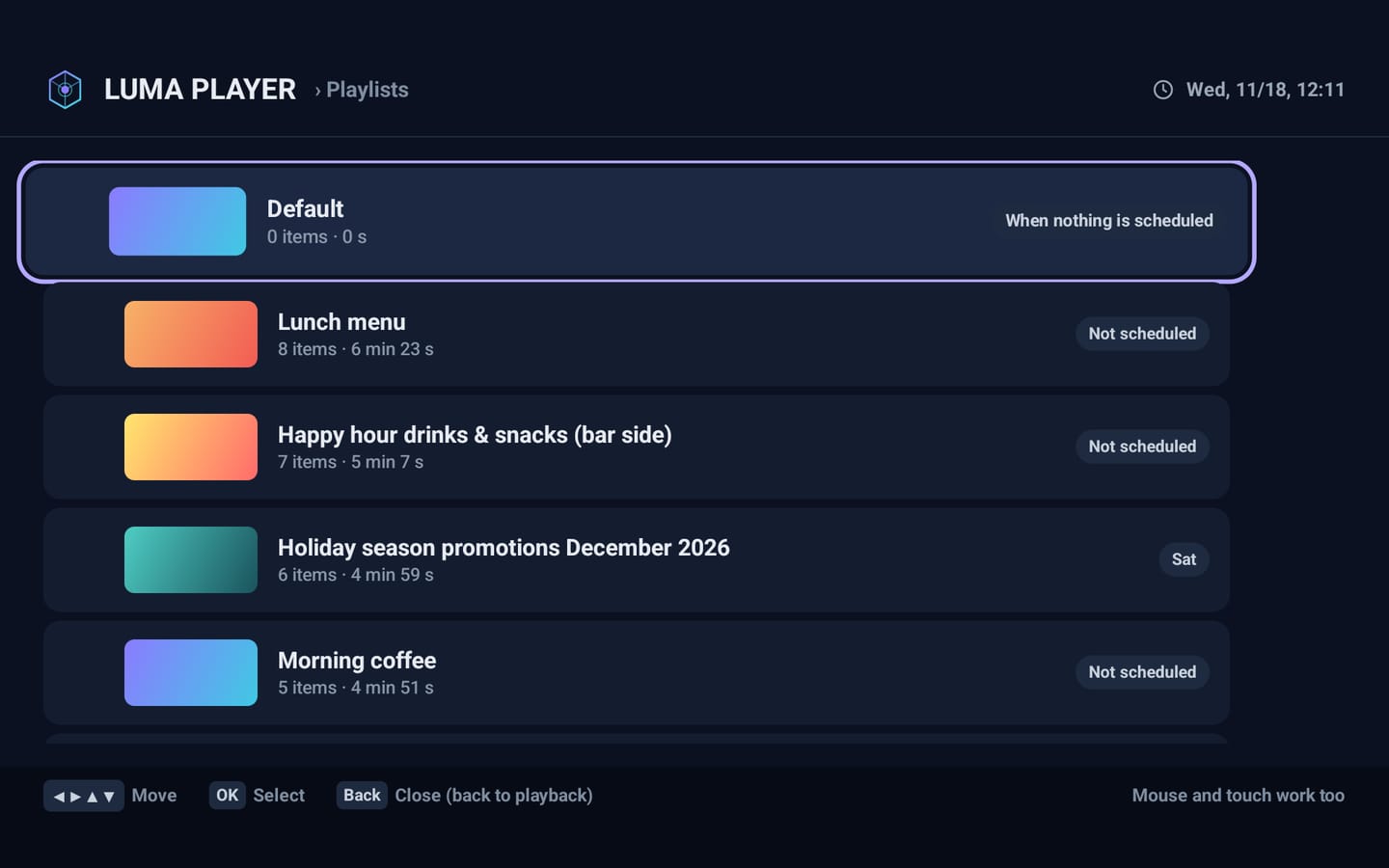
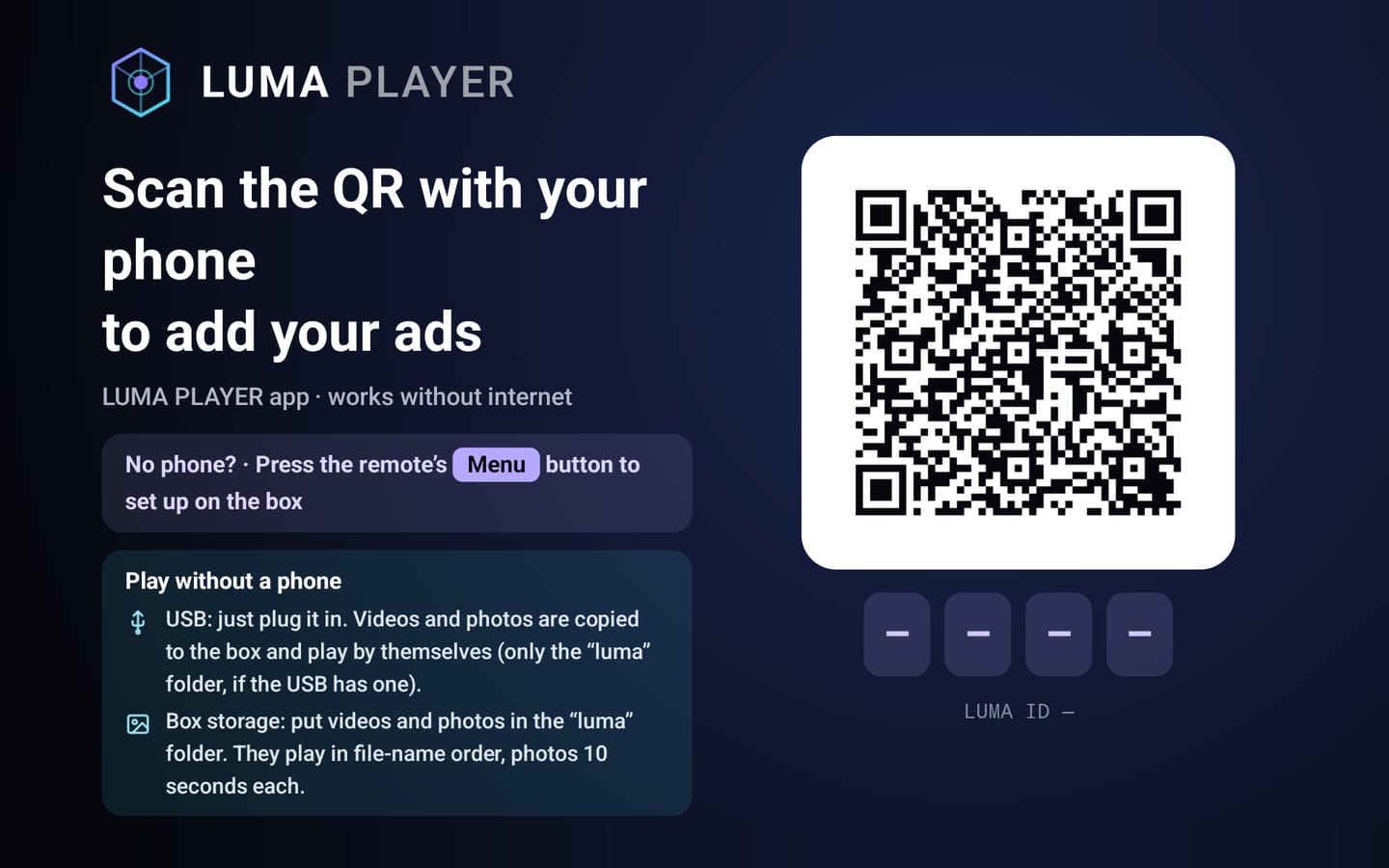
The remote's Menu button (or a mouse or touch) opens the box manager, and the arrow keys are all you need.
See videos and photos on the box by type, build playlists and change their order. Unused files are gathered in their own view.
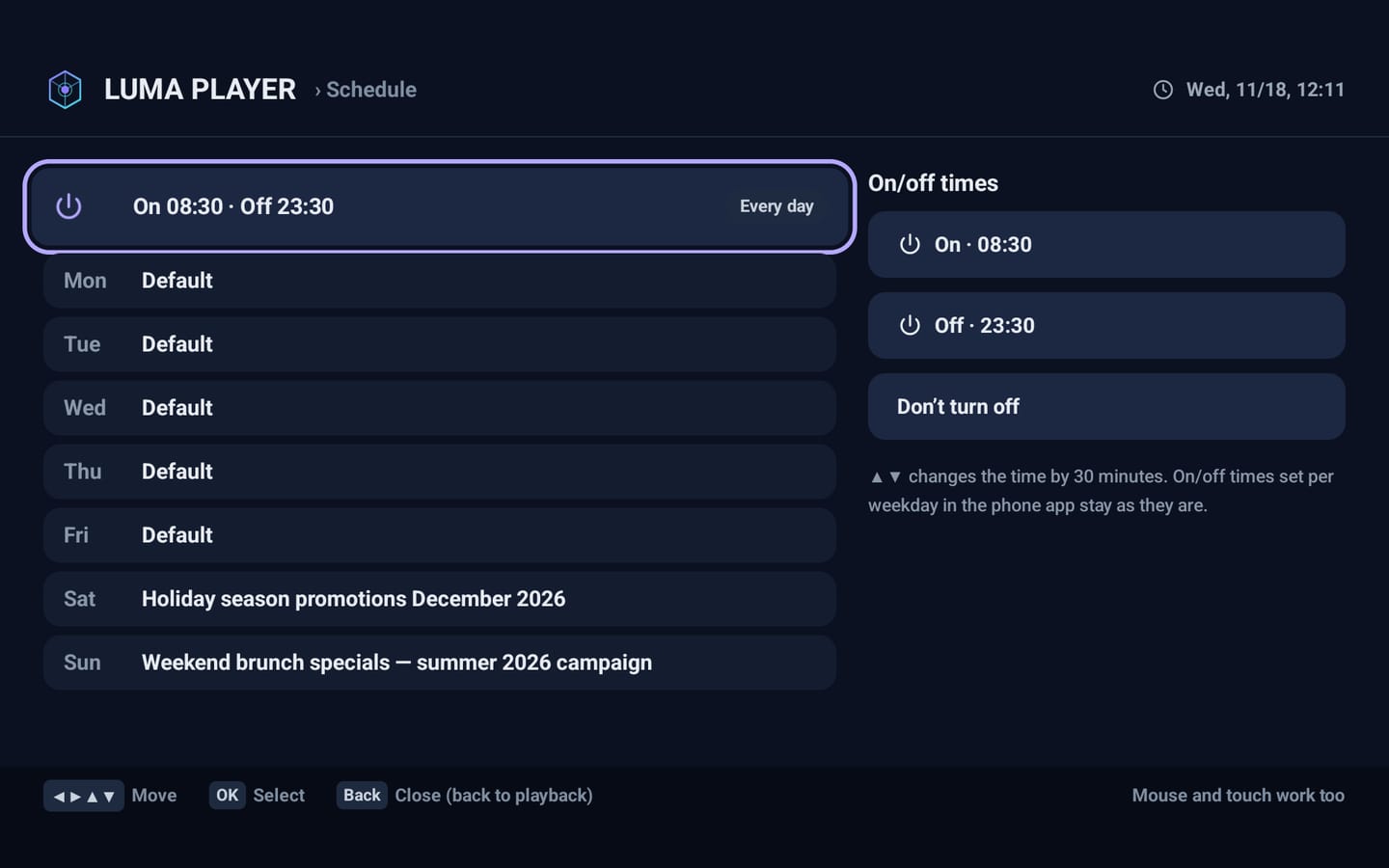
Set daily on and off times and pick the playlist for each weekday.
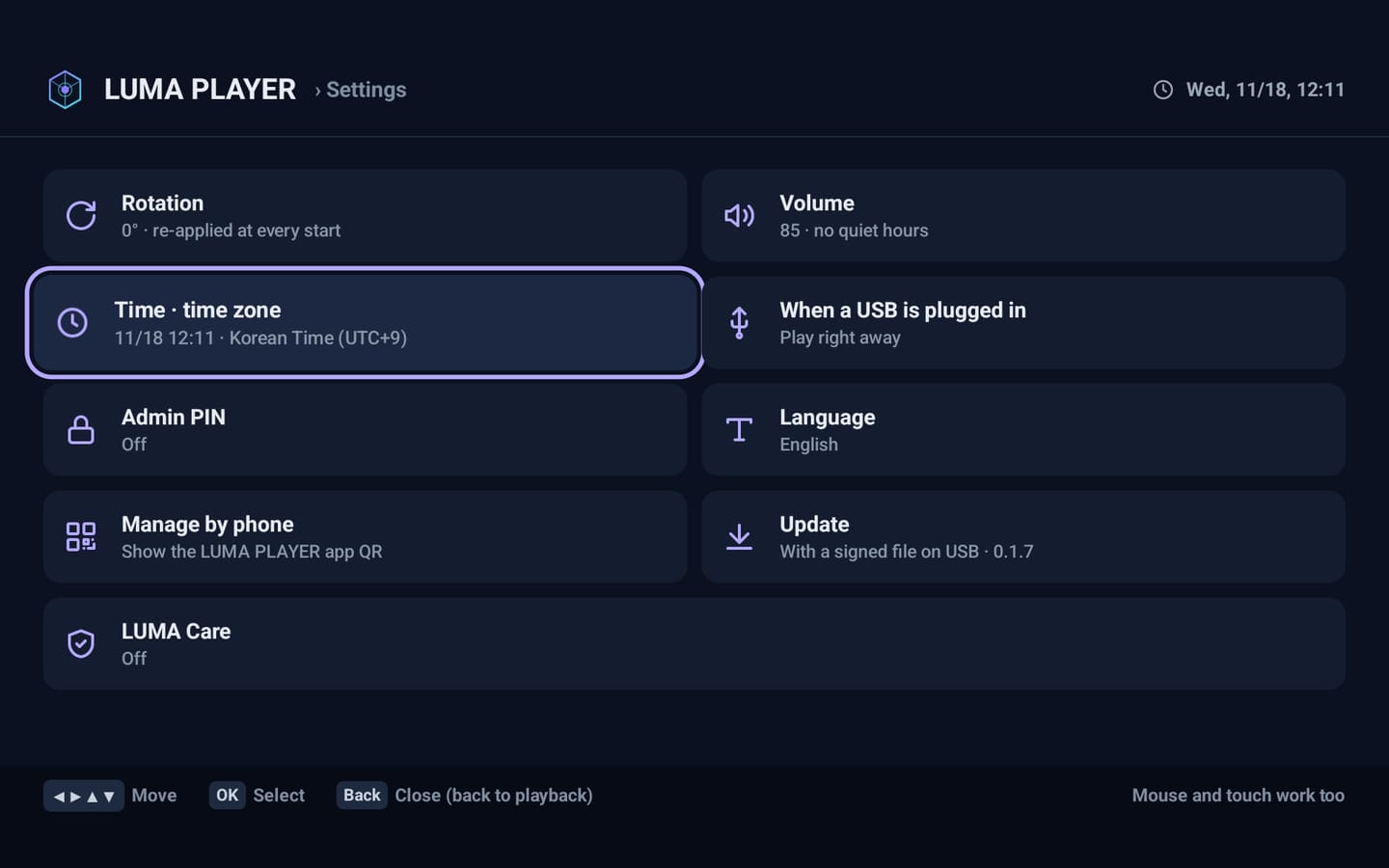
Set screen rotation (re-applied at every start), time and time zone, volume, language and an admin PIN on the box screen.
No internet needed: put a signed update file on a USB drive to move the player to a new version.
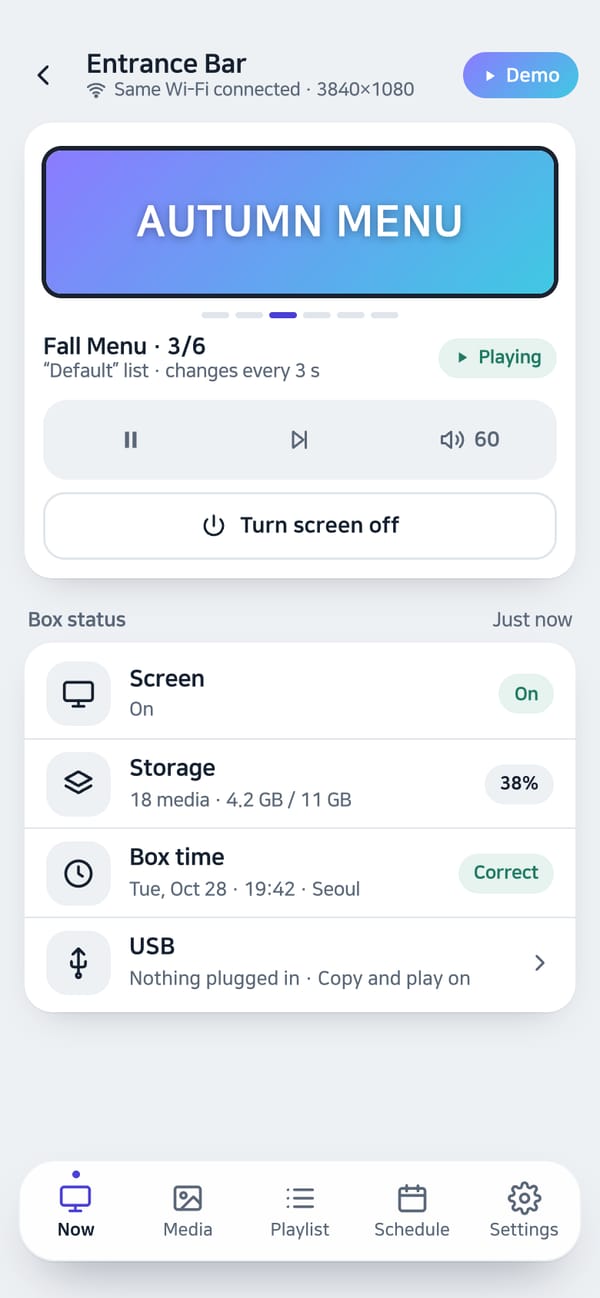
Scan the QR on the box screen with the LUMA PLAYER app and match the confirmation digits. Devices that aren't connected can't even see the box status.
The phone and the box just need to be on the same Wi‑Fi. Nothing goes through an outside server, and the connection is encrypted.
See what's on screen and pause, skip, change the volume or turn the screen off and on from the phone.
Pick photos and videos on the phone and send them to the box. If the transfer drops, it resumes instead of starting over.
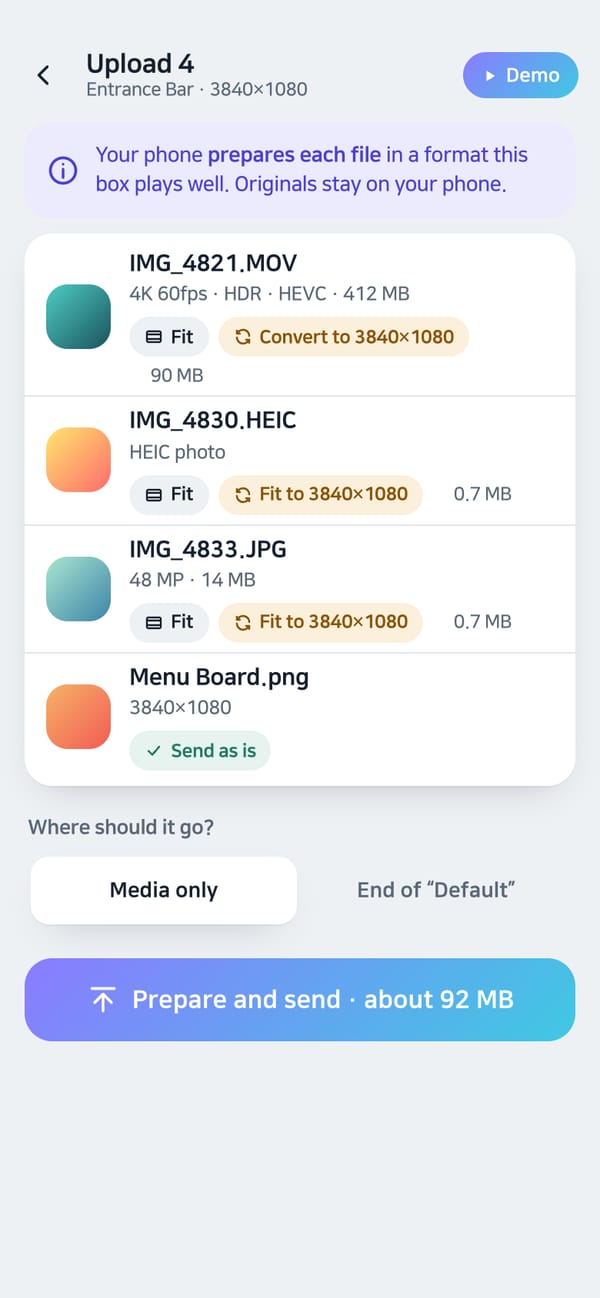
Videos the box can't play (HDR, very high resolution and so on) and HEIC photos are converted on the phone before sending. The box never converts, so playback stays smooth.
For files with a different aspect ratio, choose fill · fit with black bars · keep original, and preview at the real screen ratio.
High-megapixel photos are scaled down to the screen resolution to save the box's memory.
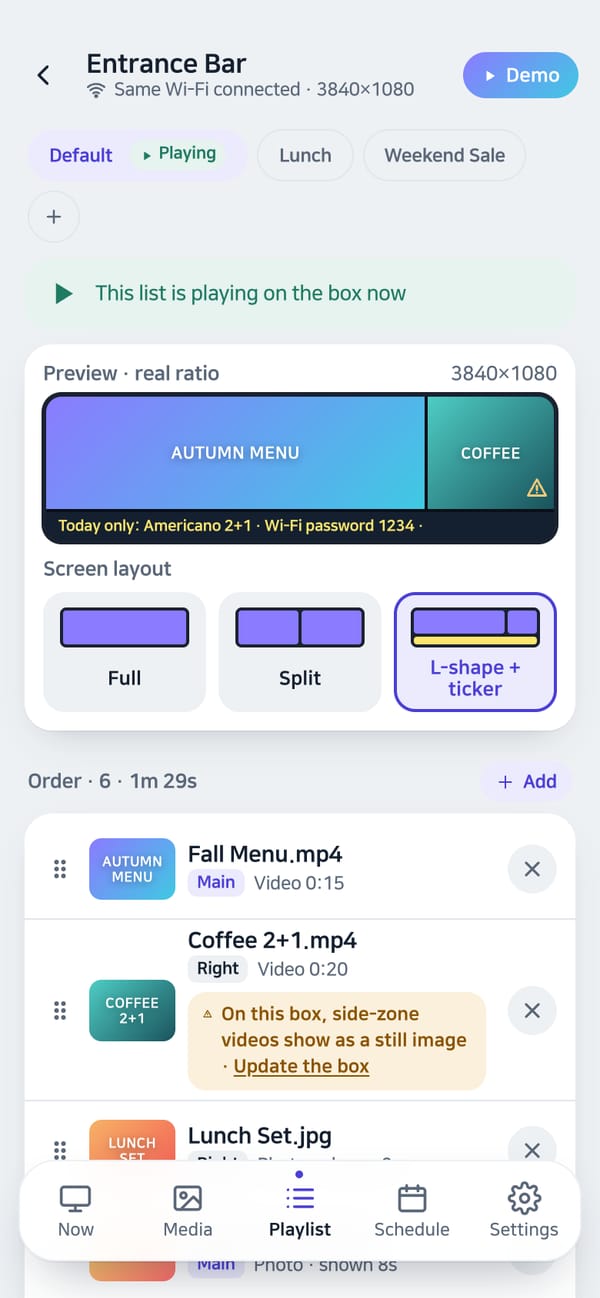
Split one screen to play different content in a main zone and a side zone, with a scrolling ticker along the bottom.
Add background music while photos play, and set the dates each item is shown.
Show different lists by weekday and time — weekday lunch, weekend deals and so on. Also set when the screen turns on and off and quiet hours with lower volume.
Play a chosen list right now, outside the schedule, then go back to the schedule.
Each time a phone connects, it sets the box time and time zone so schedules stay on time even without internet.
Equipment
Android box with LUMA PLAYER installed that drives the screen
RequiredThe screen that shows your ads — landscape or portrait
RequiredFor managing on the box screen — the Menu button and arrow keys are enough
RequiredFor loading ads without a phone
OptionalUpload ads and manage playlists and schedules on the same Wi‑Fi as the box
OptionalHow it works
Use cases by industry
Cafés and bakeries
Put the videos on a USB drive and plug it in
Ads are on screen the same day — no account or server to set up
Restaurants and bars
Split the lists by time slot in the phone app
The screen changes on time without staff switching it every day
Sites without internet
Manage with the box screen, the remote and a USB drive
Ads keep running with no internet connection
Signage installers
Connect the phone app on install day and set playlists and schedules
The client carries on with just the remote or a USB drive
Get started
Tell us your store size and the equipment you use, and we'll recommend the right setup and quote. We'll also check your existing screens and printers.
Specs
Works even better together
Frequently asked questions
Yes. USB, the box's “luma” folder, the remote-controlled box manager and the phone app on the same Wi‑Fi all work inside the store without internet. No server or cloud account is needed.
No. Without a phone, plug in a USB drive or put files in the “luma” folder and they play; use the remote to change playlists, schedules and settings on the box screen. The phone app is simply the easier way.
With the default “copy and play”, the box copies the files to internal storage first, so they keep playing after you unplug. You can also choose “play right away”, which plays only while the drive is plugged in.
Set USB to “ignore” and plugging in a drive changes nothing. With an admin PIN on, the box manager asks for the PIN, and the phone app only works on devices connected through the QR on the box screen.
The phone app is currently available for Android. We'll announce iPhone support when it's ready. All the basics also work with just USB and the box screen, no phone needed.
LUMA PLAYER is a server-free player managed box by box inside the store. LUMA AI CMS schedules and sends content to the screens of many stores remotely from one console. As you grow, you can start CMS on the same boxes.
It depends on your box setup and quantity. Send us an inquiry and we'll suggest the right setup and a quote.
Our team will help you work out the setup and quote.